
Vendors: How to add a promotion
This article walks through the process for adding a promotion to your vendor business card.
Updated July 7, 2026
Note: Promotions is a paid upgrade feature and available to Vendor Business Cards on the "Enhanced" tier.
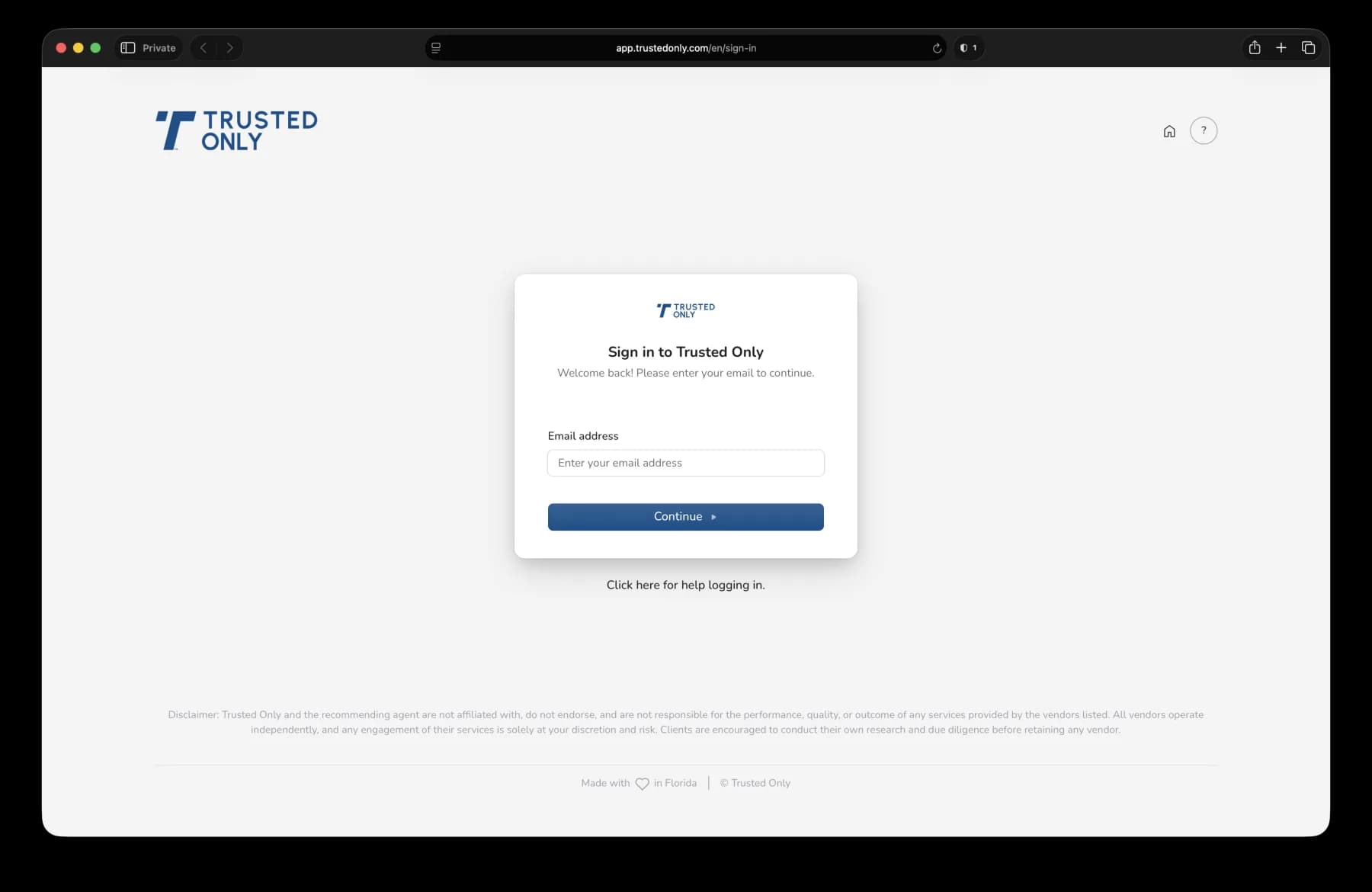
1. Log into your Trusted Only account.
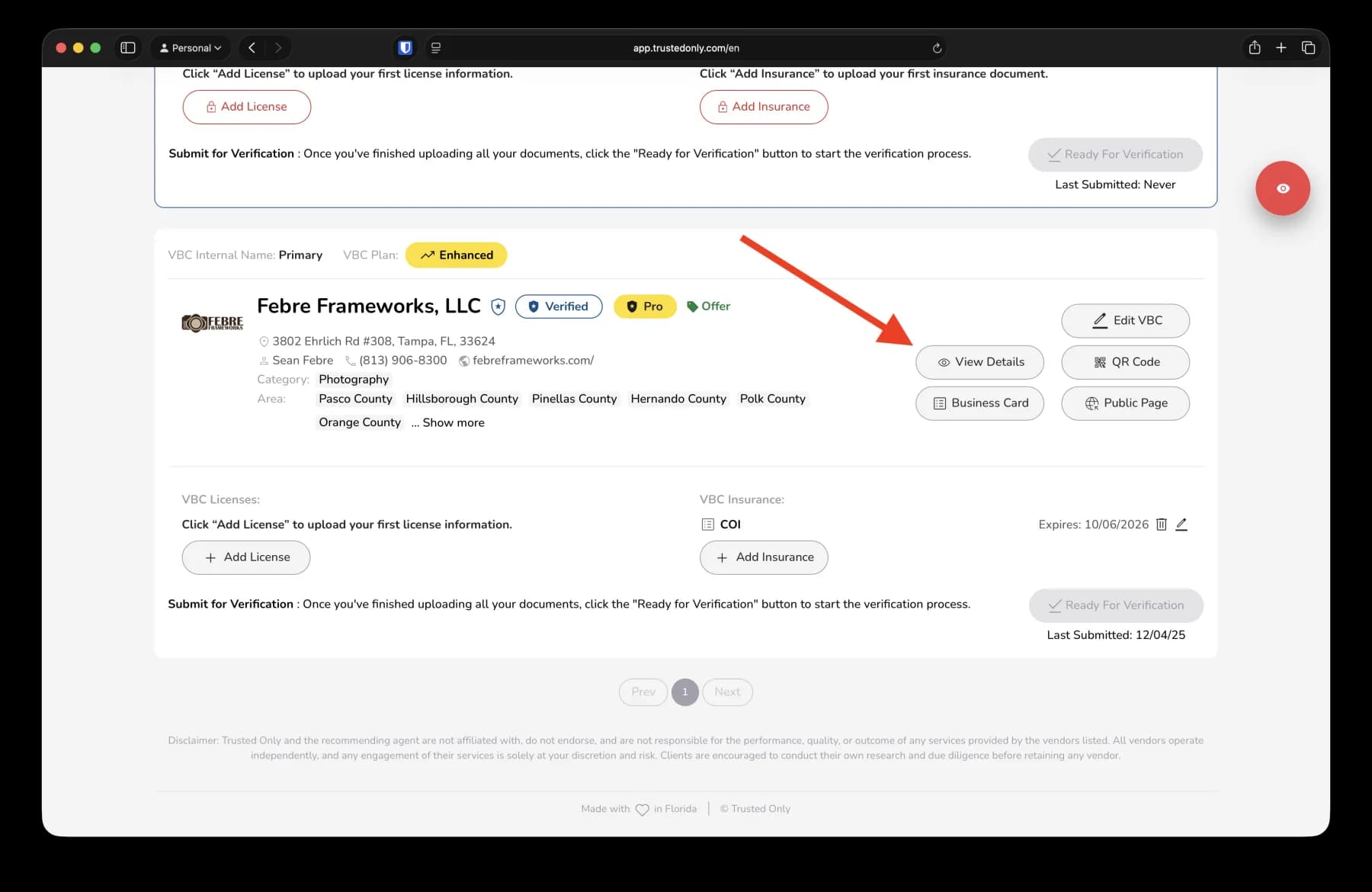
2. Locate the Vendor Business Card you want to add your promotion to and click the View Details button.
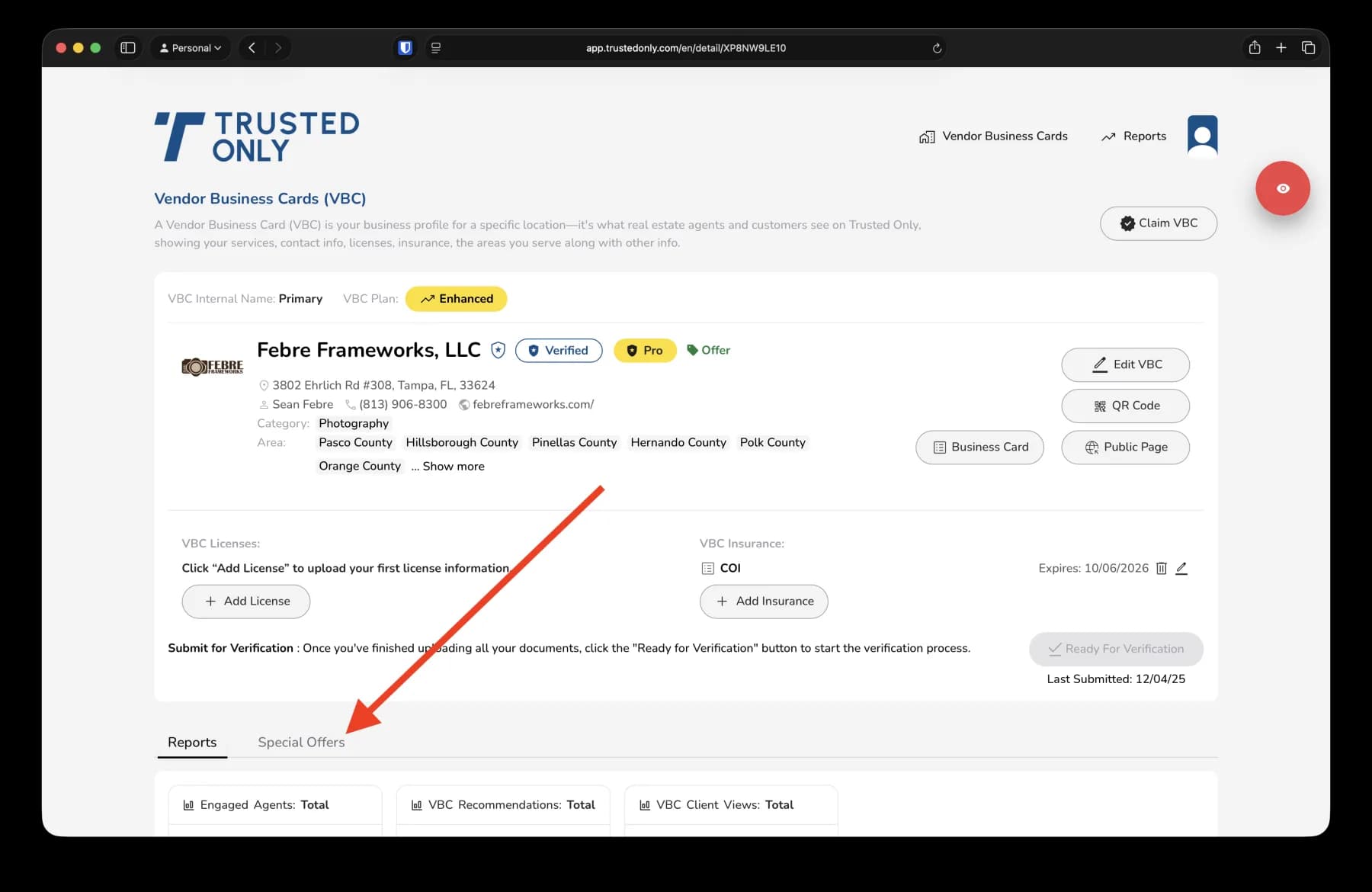
3. On the details screen of your Vendor Business Card, tap the "Special Offers" tab.
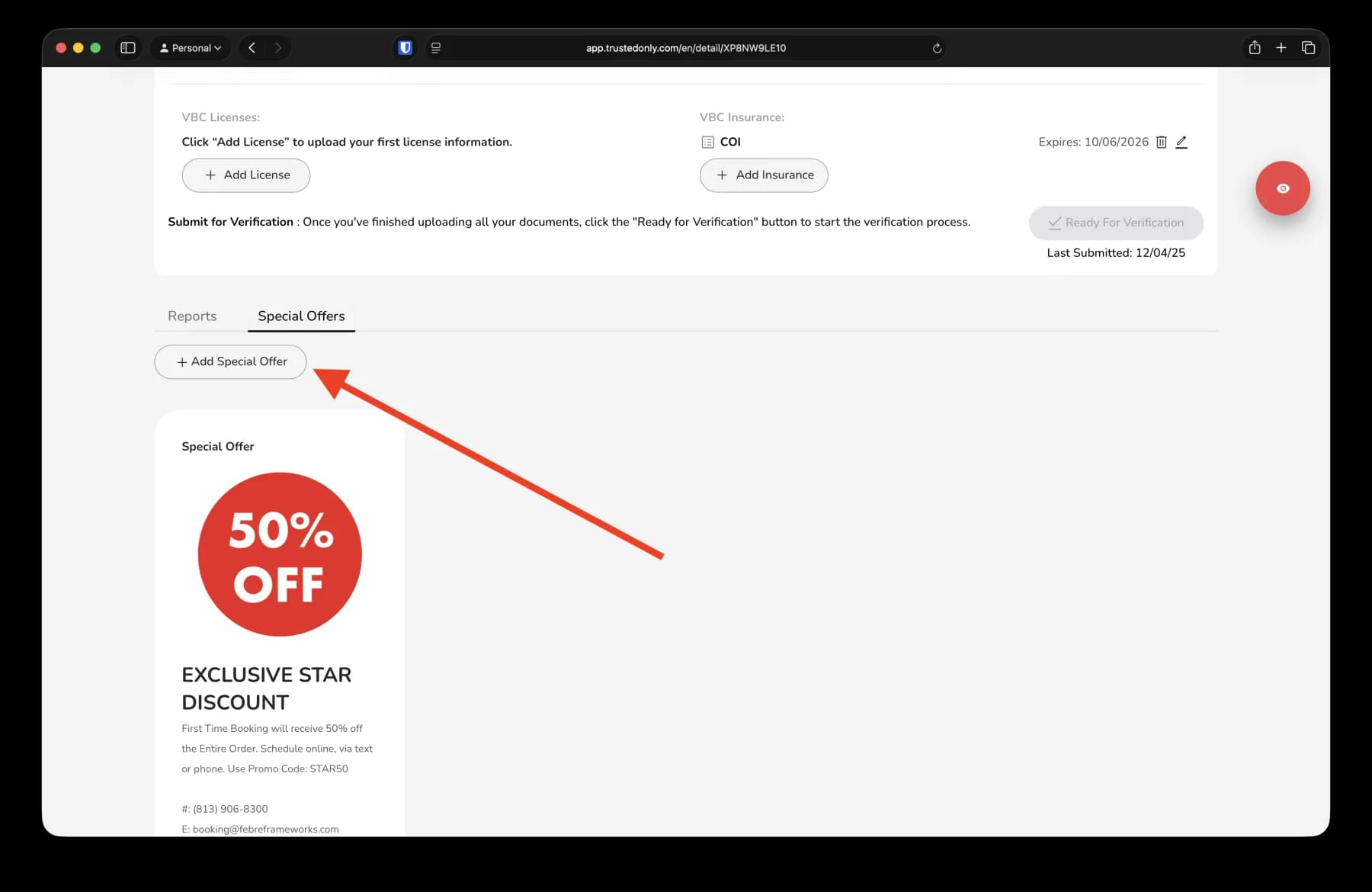
4. Tap the "Add Special Offer" button.
5. Fill in the information about your offer.
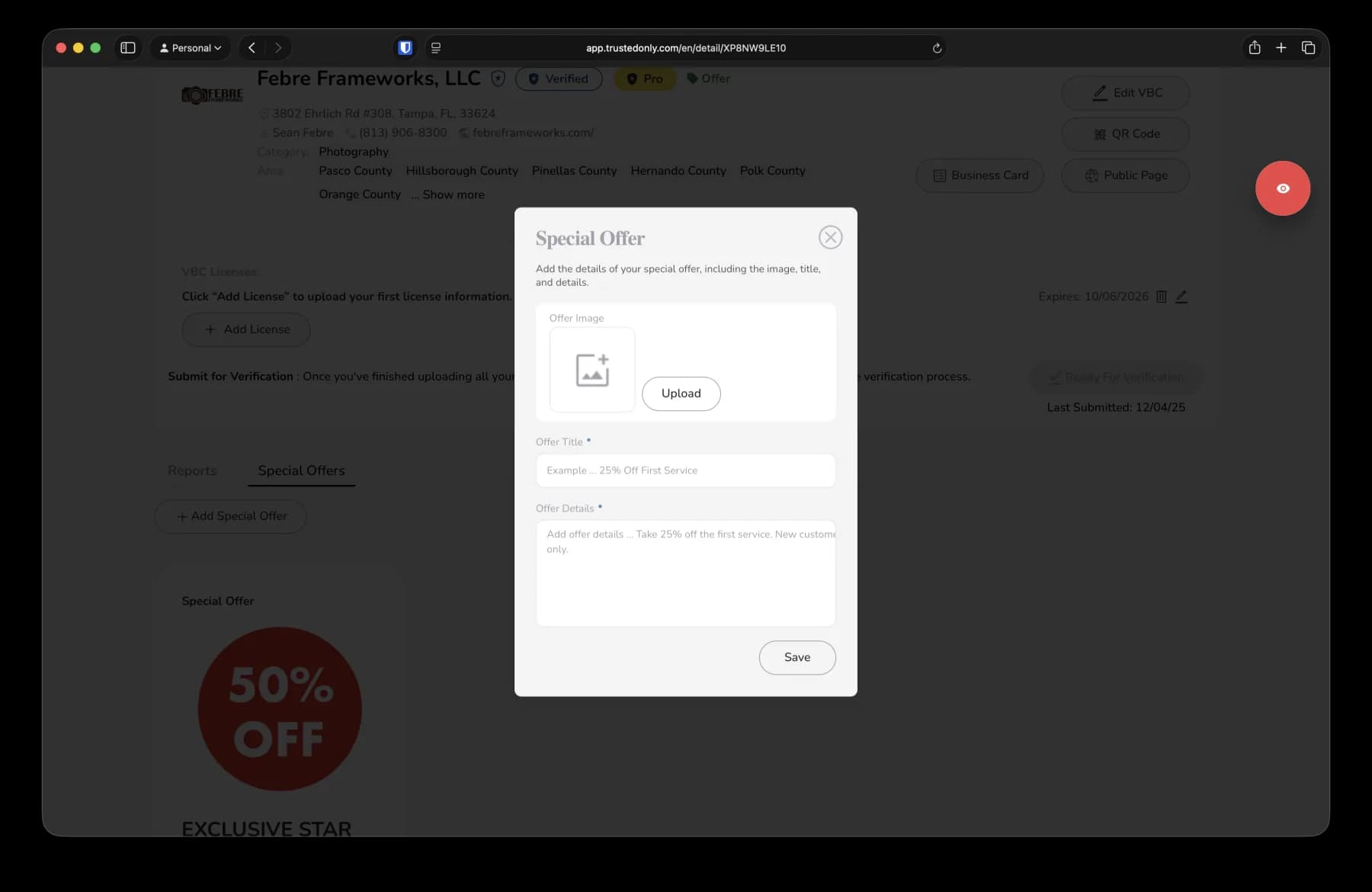
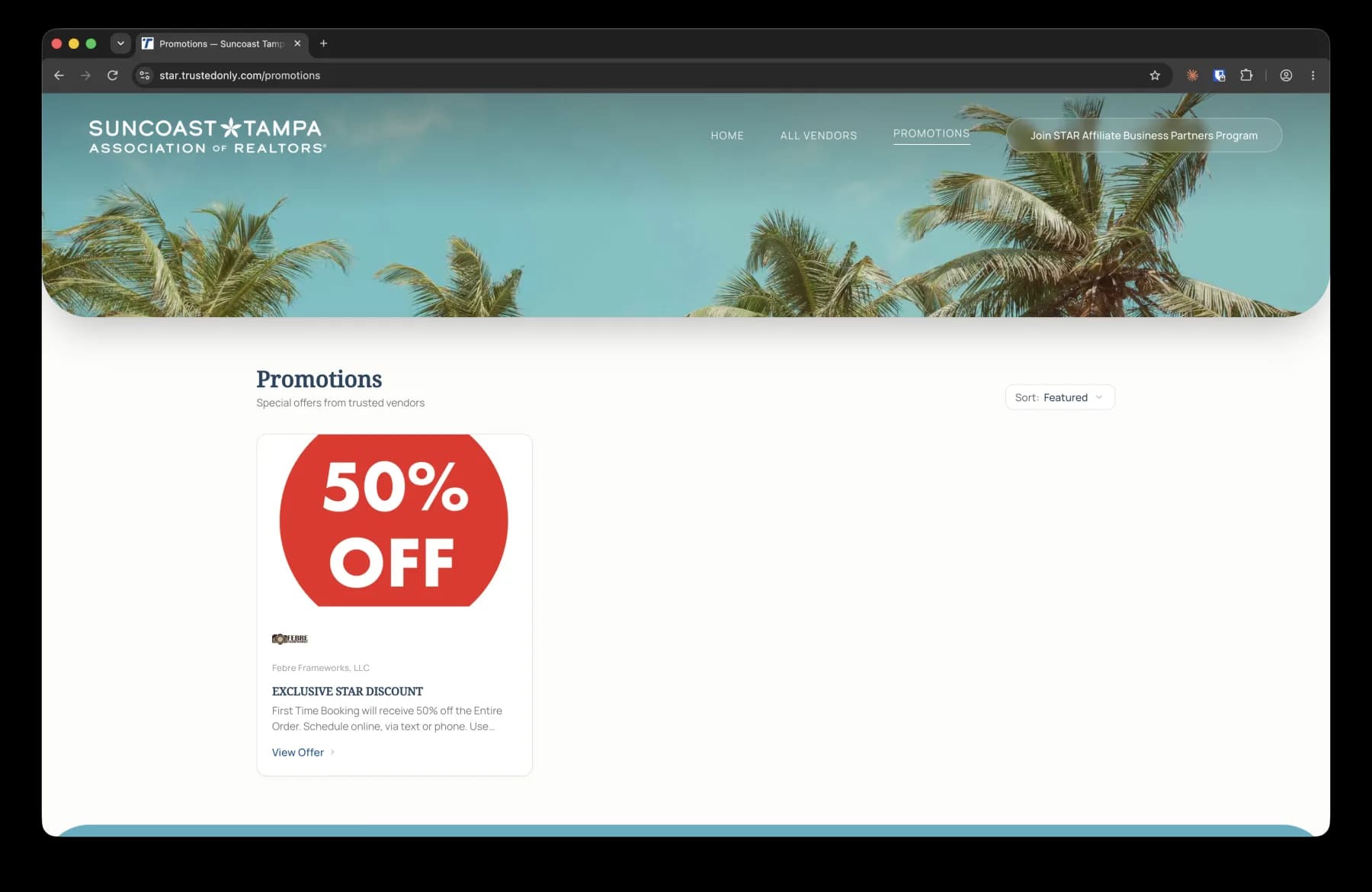
6. After saving the offer, the offer goes through an approval process. When approved, the offer will appear on the "Promotions" screen of the Vendor Directory.
Was this article helpful?
If you still need help, our support team is ready.