
My Favorites List
How to curate a favorites list and share it through a live URL that stays current with your selections.
Updated October 24, 2025
My Favorites allows you to quickly share your trusted vendor recommendations with clients, positioning you as a valuable resource while saving time on repetitive referral requests.
This help article will walk you through the process of creating and sharing your favorites list.
Short Video
How to Use the My Favorites List
1. Introduction to My Favorites List
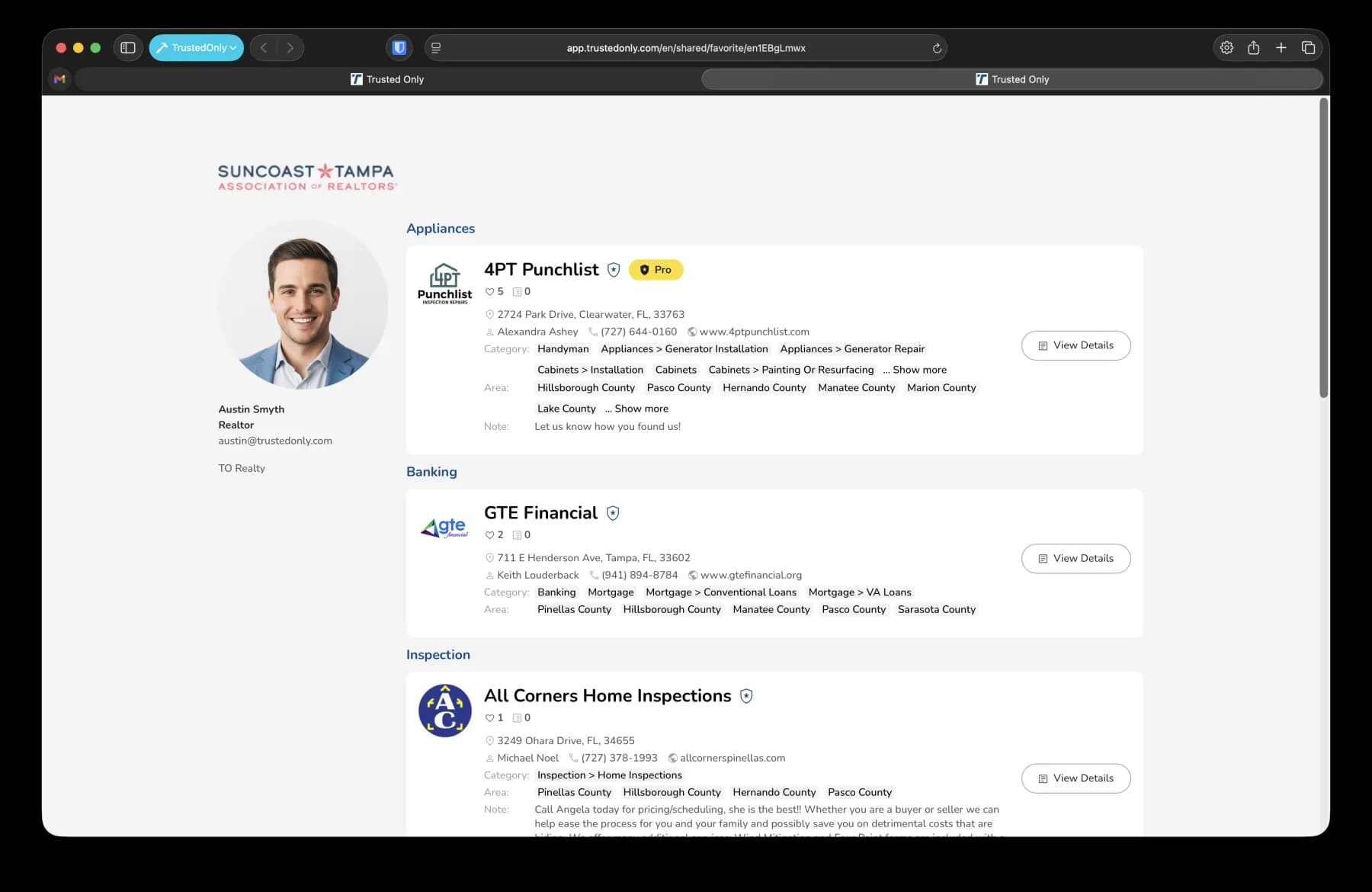
The My Favorites List is one of the most useful lists.
It allows you to quickly access and share your preferred vendors.
2. Adding Vendors to Your Favorites List
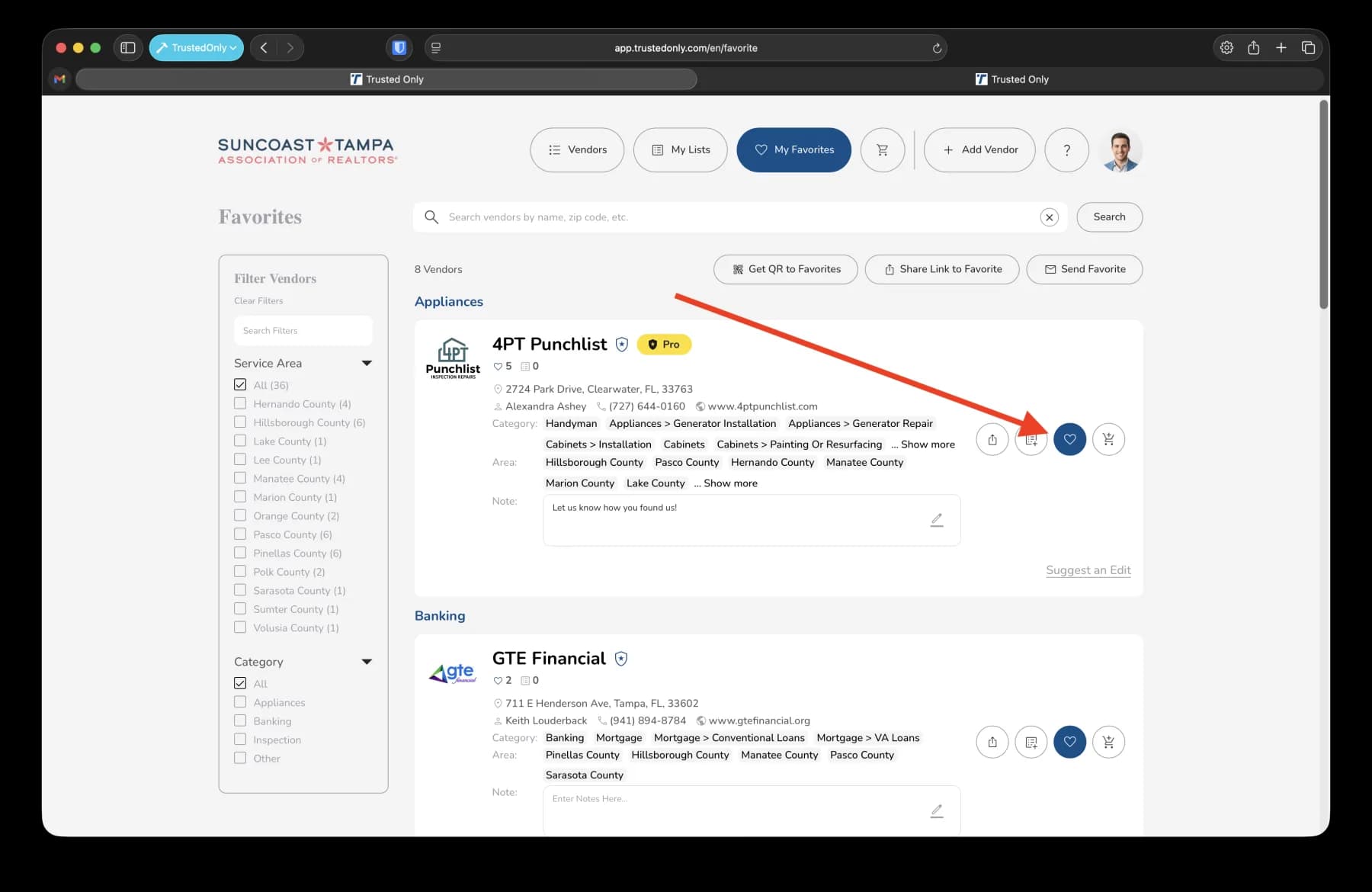
Each vendor has a heart icon on their business card.
Tap the heart icon to add the vendor to your My Favorites List.
3. Viewing Your Favorites List
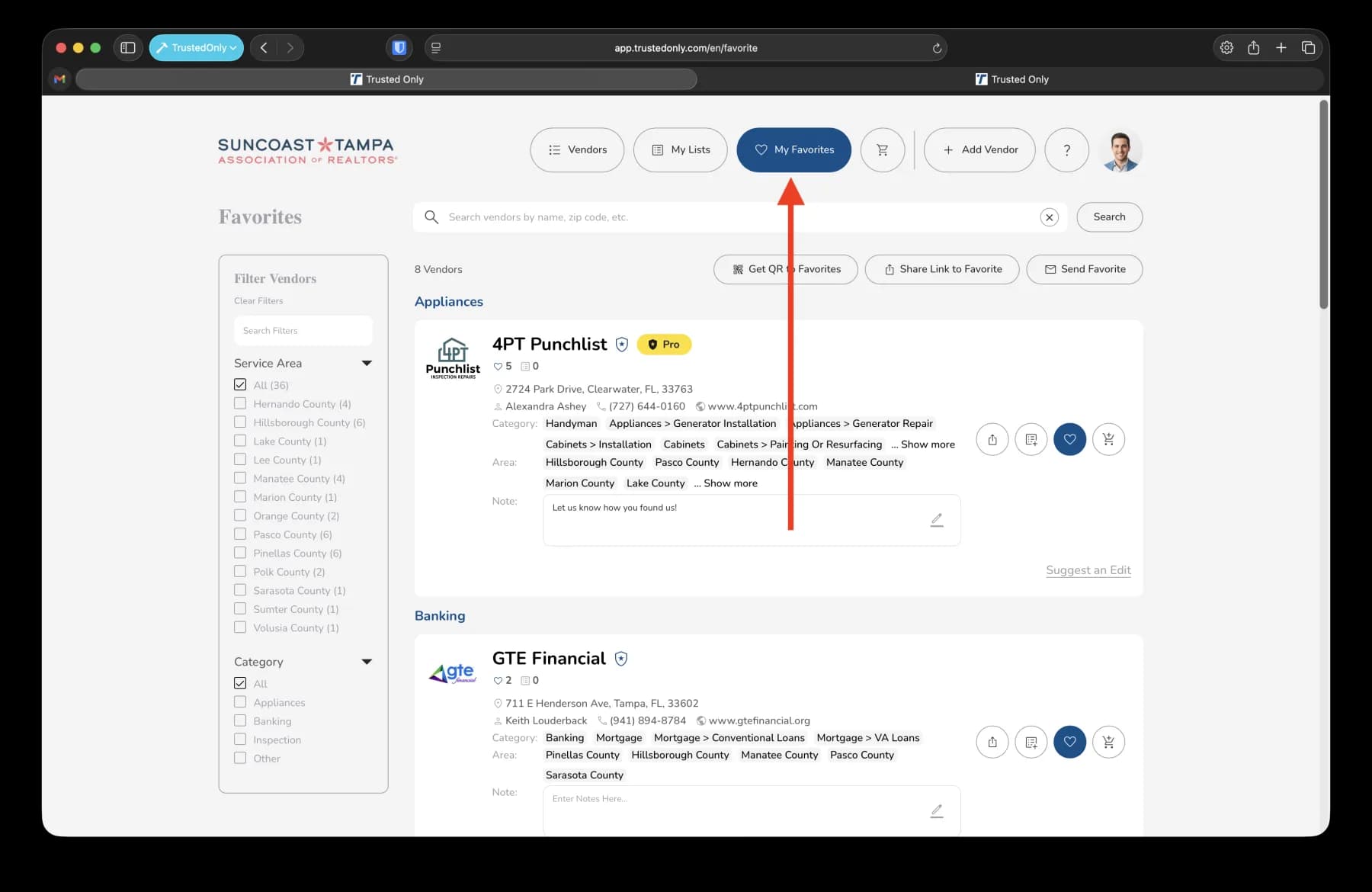
Go to the My Favorites section to see the vendors you've added.
4. Sharing Your Favorites List
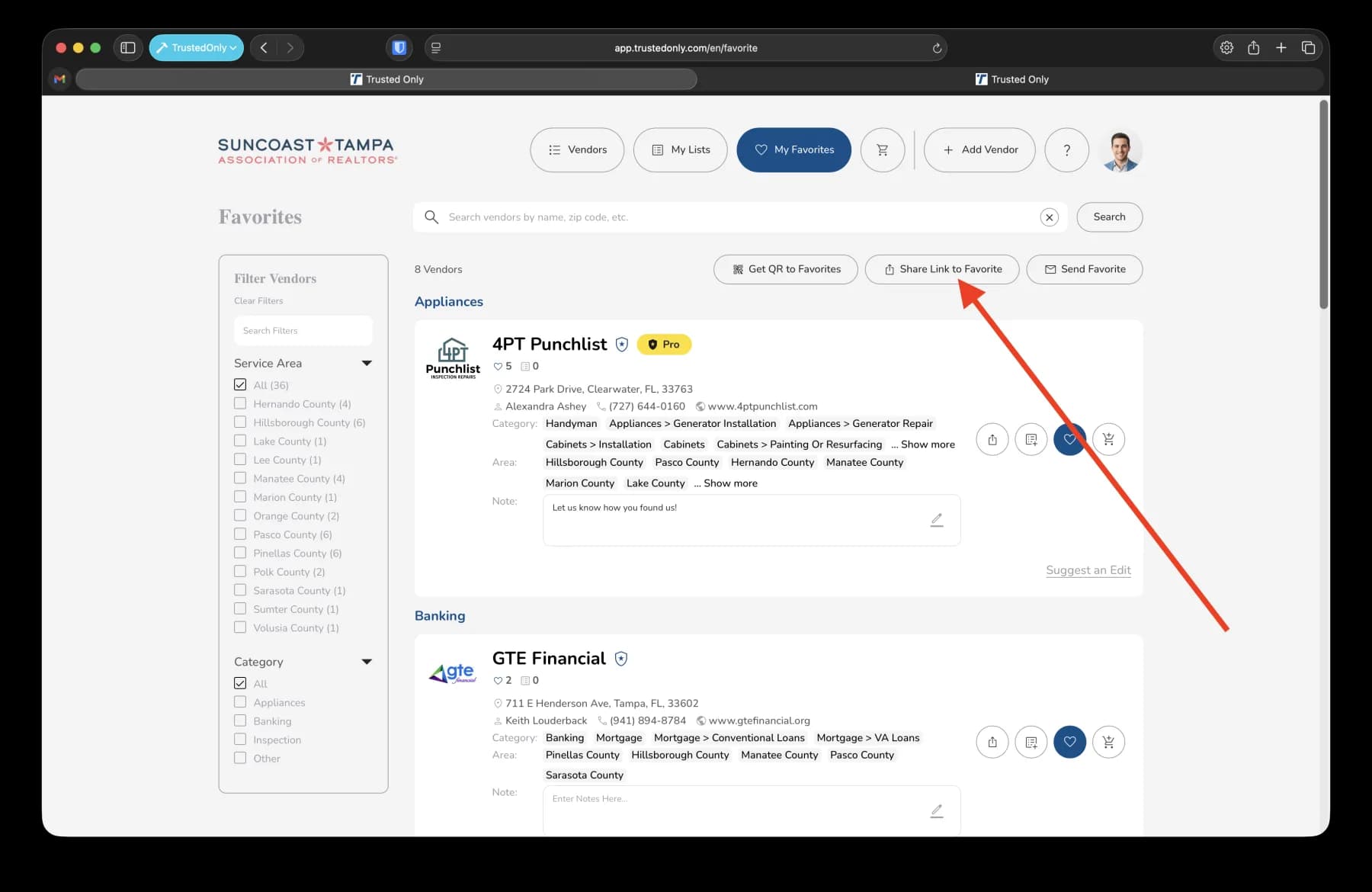
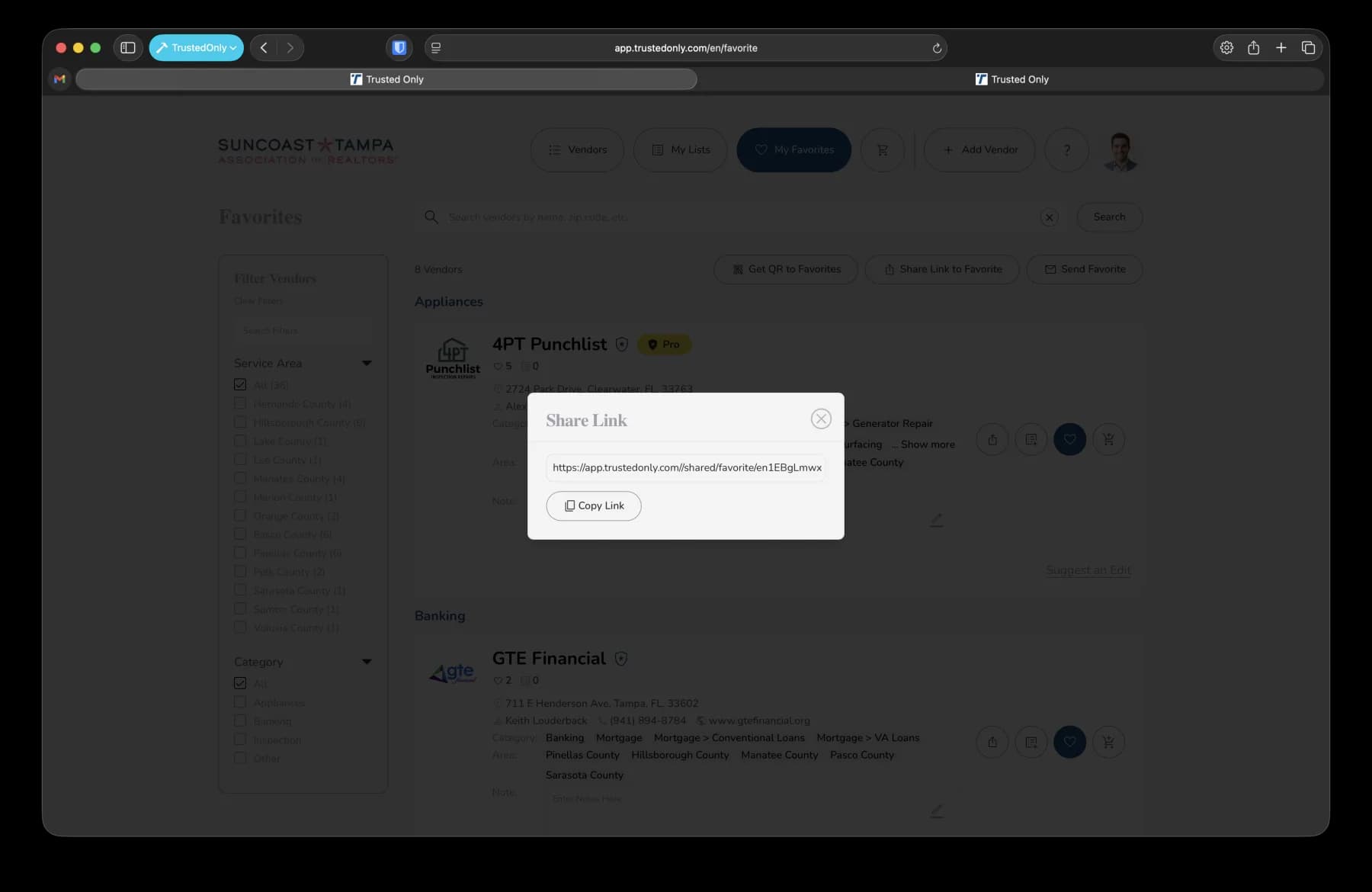
Click on the 'Share' link to get a URL for your favorites list.
This URL can be shared with others.
5. Accessing Your Public Favorites List
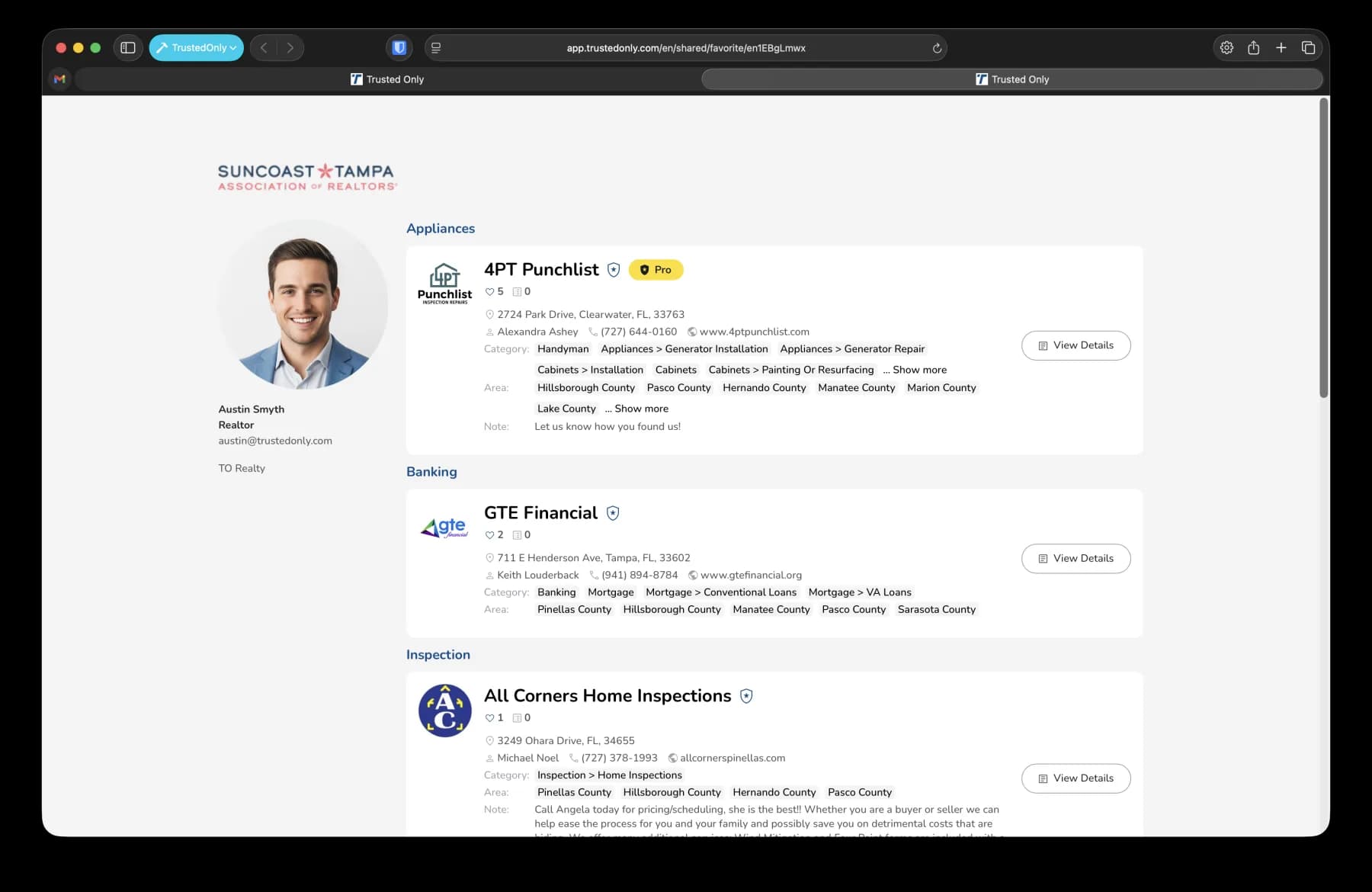
Open a new tab and paste the copied URL to view your public list.
The list is branded with your name and information.
6. Understanding Live Updates
The favorites list is live, meaning any changes you make are automatically updated on the public list.
7. Editing Your Favorites List
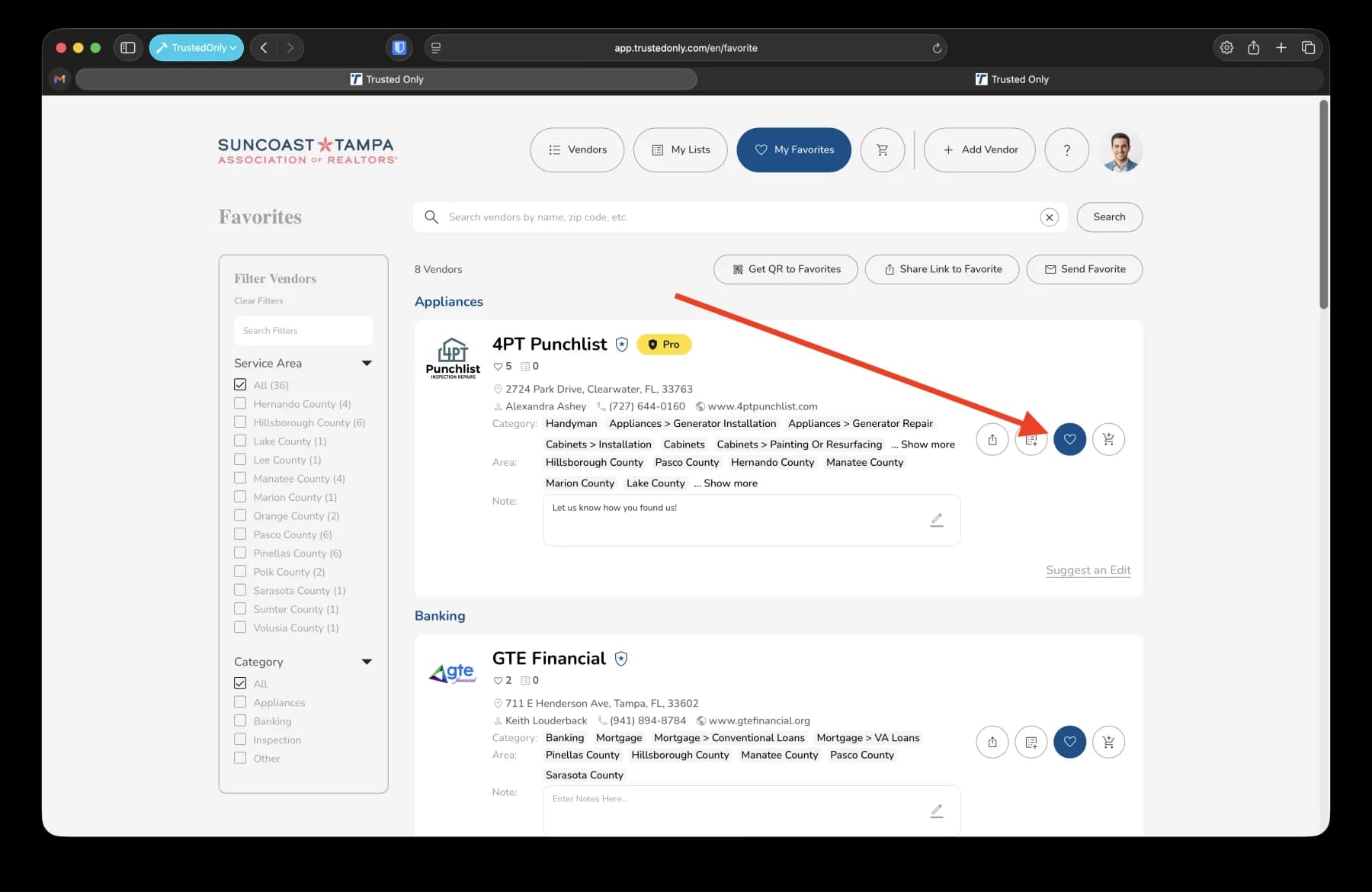
To edit, go back to the admin area and make changes (e.g., removing a vendor).
Changes will reflect immediately on the public facing list.
8. Conclusion
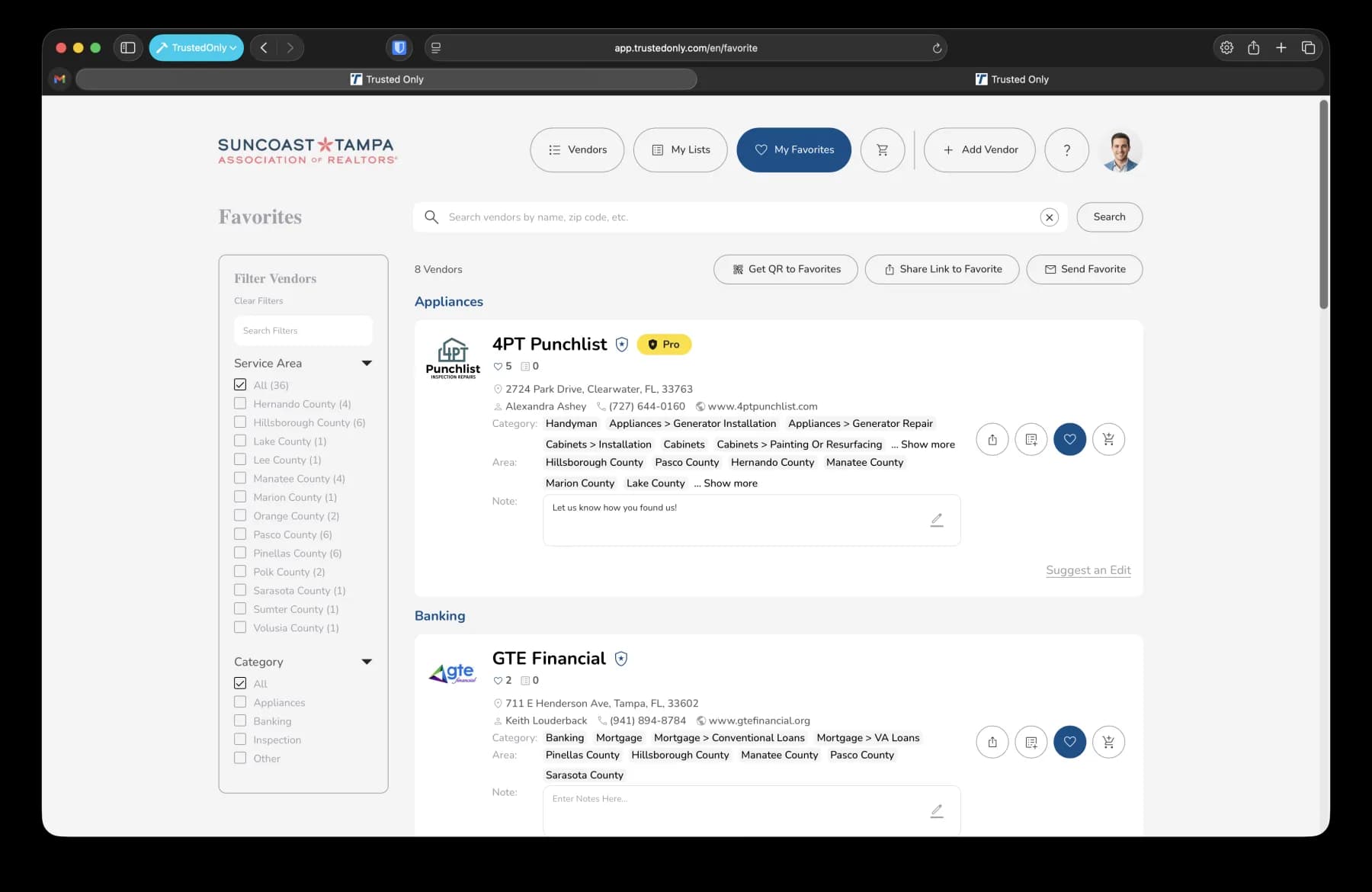
The My Favorites List is an efficient way to keep your vendor list current and shareable.
Was this article helpful?
If you still need help, our support team is ready.